Adding a YouTube or any other third party video is easy with a static website. However when you add the required code to a Joomla article, the editor alters the code which prevents the video from working. I explained how to avoid this in a previous newsletter but here's an even easier way to add videos using a free extension:
1. Download AllVideos from JoomlaWorks (this is for Joomla 1.5 - not 1.0). You'll find the download link about halfway down the page.
2. Install it like any other extension - if necessary review lesson 12 of our free Joomla tutorial
3. Login to Administrator and go to Extensions - Plugin Manager.
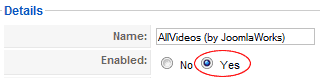
4. Find the newly installed Plugin, AllVideos, and click it to enter edit mode. Change Enabled to Yes and click Save in the top right.
5. You now need the code for your YouTube video. This can be found at the end of the URL e.g. if the full URL is http://www.youtube.com/watch?v=tn8v0GqCS1c then the code we need is tn8v0GqCS1c.
6. Create a new article or edit an existing article and at the point where you want your video to appear, enter:
{youtube}tn8v0GqCS1c{/youtube}
but replace the above code with the code for your video.
7. Save and enjoy.
AllVideos also works with many other third party video sites including Dailymotion and Vimeo. And you can use it to play videos hosted on your own site. For more details, read these instructions.

