Joomla Blog

Tutorials, reviews, case studies and other tips to help website owners and website developers master the Joomla content management system.

Creating spaces around images

Posted by Richard Pearce
Richard Pearce
Owner of Build a Joomla Website. Responsible for 1 wife, 3 kids and 17 fish.
User is currently offline
on Friday, 10 February 2012 in Tutorial

A common question we receive from Joomla beginners is "will I need to learn HTML code to build a Joomla website?" The answer is "no – but it helps". It is easy to insert an image into an article as demonstrated in lesson 10 of our free Joomla training for beginners course – The Basics.

However when you insert an image and align it to the left or right of text, the characters usually end up pressed against the image which doesn't look good. You can add some spacing in HTML mode if you know how. But it's much easier when you replace the standard Joomla editor with a free extension called JCE. Here is the process:

1. Download JCE

2. Install it as you would any extension. Review lesson 12 - Joomla Extensions - if necessary.

3. Enable JCE. You can make this the default editor for all your users in Global Configuration.
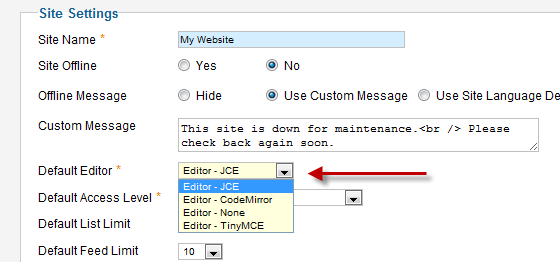
The default editor settings in Global Configuration

Or you can just make it available to you on the My Profile page.

The editor settings in My Profile
 

4. Open an existing article or create a new one and note that the editor now looks different. There are now many more icons available. Select an existing image and click the image icon which is on the last row towards the right. Or to insert a new image, position the cursor at the point where you want the image and click the image icon.

Select an image and then click the image icon in the editor
 

5. From the alignment drop-down, choose either right or left.

6. The next line, labelled Margin, is where you can set spacing around the image. To insert the same amount of spacing around all sides of the image, just enter a number into the Top box and leave "Equal Values" ticked.
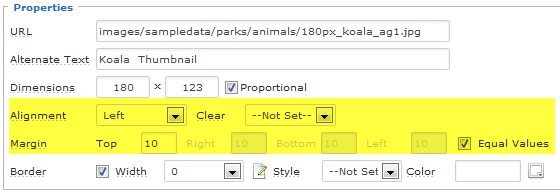
How to set uniform spacing around an image

But you probably just want a bit of space on one side of the image. In this case, untick the "Equal values" box and add numbers in the relevant boxes. For example, if your image is aligned to the left, you might enter 10 in the right box. The result will be that the image has 10 pixels of space to the right which gives the text some "breathing room". You may also need to add some space to the bottom.
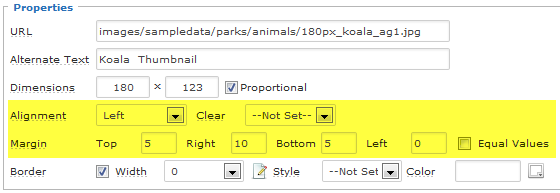
Alignment and margin settings 

JCE is an excellent extension and provides many more features than the standard Joomla editor.

The idea for this article came from our forum. Anyone is welcome to post in our general forum. And Joomla Pro members have access to an exclusive forum for priority support.

Owner of Build a Joomla Website. Responsible for 1 wife, 3 kids and 17 fish.
Trackback URL for this blog entry

Comments

Kaloyan Banev Friday, 10 February 2012

I was using JSE in the past, but there were so many errors, incompatibility and stability issues that I've met using it on complicated projects that again I switched on to Tiny MCE which is more than enough and actually can do the same.

Margot Friday, 10 February 2012

Thanks Richard, great tip. Will get this one immediately.

dave Saturday, 11 February 2012

Thanks , so much for your help and time , it is appreciated !! learning Joomla 2.5 is a lot easier with your help !! Dave

hosting joomla Wednesday, 15 February 2012

Thanks for the article. I had problems with images but your article is very useful. Keep posting!
Greetings!

connal Friday, 16 March 2012

Great advice as always. Thank you. You need one of those shiny ring things around your head for the help you give joomla initiates like me. Thanks, connal

Leave your comment

Guest Friday, 18 May 2012

Joomla Tutorials

Joomla Pro

Save a fortune on your web development or earn a second income by becoming a Joomla Pro. This course covers every Joomla feature plus you'll learn about ecommerce, membership sites, search engine optimisation and more.

Learn more

Beyond the Basics

Once you have learnt the theory, it's time to go Beyond the Basics. Watch as we build a Joomla website from scratch and learn how to include popular features such as feedback forms and Google Maps. You can also download the lessons.

Learn more

The Basics

If you're new to Joomla then start with The Basics. This free course teaches everything you need to know to build your first Joomla website. This is the easiest and fastest way to learn Joomla - and it won't cost you a cent! No registration required.

Learn more